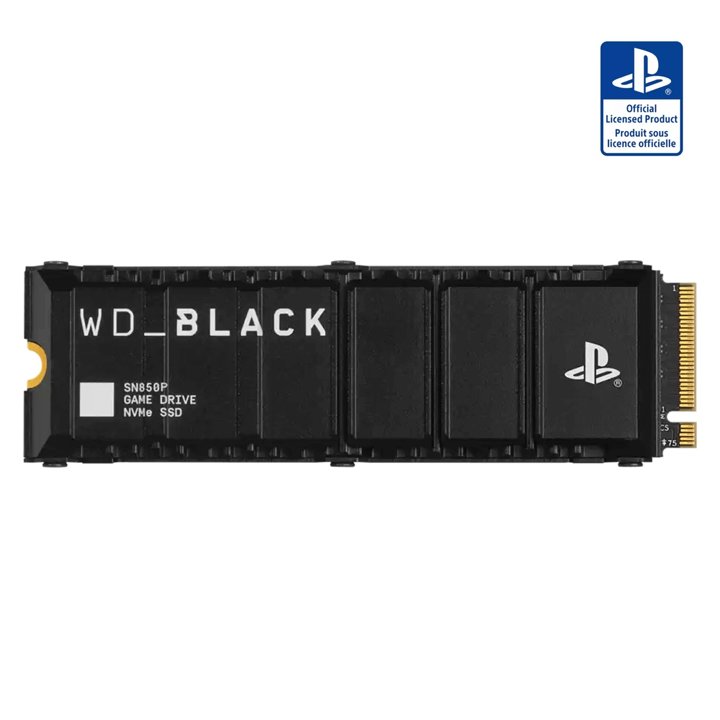
A USB SSD can hold your PS5 games without giving you another place to play them. If your frustration is choosing what to uninstall before every new release, that distinction matters more than the capacity printed on the box.
The useful question is whether you need an archive or a larger ready-to-play library. PS5 games run from console storage or a compatible installed M.2 SSD; they don't run directly from USB extended storage. That boundary is confirmed by PlayStation's USB guide and its M.2 documentation. Support information was checked on October 14, 2026, at 9:23:18 a.m. PT. This is a buying framework, not a drive benchmark.
Count the games you want ready
Make two short lists before shopping. Put games you expect to start this week in one, and games you're keeping for a possible return in the other. Treat those as different storage jobs.
If your first list is small, consider whether moving the second list out of the way would be enough. You don't necessarily need to spend money making your entire backlog instantly playable. If you regularly switch between several PS5 games and resent every transfer, prioritize capacity that can actually launch those games.
Sony's storage-management guide confirms that archived PS5 game data must move back from USB to console or M.2 storage before play. WD_BLACK's expansion comparison describes the same trade-off and confirms that PS4 games can run from external storage.
That makes a USB drive worth considering for a mixed-generation library. Keep the PS4 games you still play there, and reserve the playable PS5 space for your current rotation. For someone mostly playing PS5 releases, think of USB as a shelf you retrieve games from, rather than extra launch-ready space.
| Option | PS5 games | PS4 games | Best fit |
|---|---|---|---|
| Existing console storage | Play directly | Play directly | A short active list; organize before buying |
| Compatible USB extended storage | Store, then transfer back to play | Play directly | An archive or a PS4-heavy library |
| Compatible installed M.2 SSD | Play directly | Play directly | A larger library you want ready immediately |
Buy for the job, then check compatibility
Don't start with a retailer's biggest capacity filter. Start with the decision above, then check the exact drive against the console requirements. A listing that says “SSD” hasn't answered whether it belongs inside the console or connects over USB.
The SanDisk installation FAQ and Sony's M.2 guide both rule out M.2 SATA drives. They also warn against adding another heatsink to a model with one already built in. Follow the installation instructions for your particular console and drive rather than assembling a shopping basket from loosely related accessories.
For the comparison itself, use the complete cost of a compatible setup. Then ask what inconvenience that purchase removes. An archive can be the right answer if you don't mind planning a return to an older game. It can be the wrong answer if you're buying it specifically to avoid moving PS5 games around.
We aren't recommending a particular capacity or claiming one model loads games faster here. Your active library, tolerance for transfers and budget should decide the first part; measured testing of the exact hardware should decide any performance claim.
Give the extra space a purpose
Try a simple rule: every game in your ready-to-play list should have a reason to be there. “I'm playing it,” “my friends regularly invite me,” and “I want to start it next” are useful reasons. “I might want it someday” belongs on the archive list.
That isn't a demand to turn leisure into administration. It's a way to avoid buying more storage and immediately filling it with the same uncertainty. Leave yourself room to choose something new without preserving every old installation in the most convenient location.
Choose USB if the job is keeping games nearby for later, or playing your PS4 library. Choose a compatible M.2 upgrade if the job is keeping more PS5 games ready to launch. If neither problem is bothering you yet, keep your money and revisit the choice when it does.