
A lot of consoles are about to change hands. Nintendo has a new Japan-only choose-your-game Switch 2 bundle due November 12, family games like Nintendo Switch Sports Resort and the Switch 2 edition of Minecraft land later this month, and the holiday buying season is close behind. For parents, that usually means a weekend of setting things up, and the three platform holders have quietly converged on the same idea: a free phone app that manages a child’s play time, purchases and online contact from the couch.
The apps look similar on the surface, but they are built on different assumptions, and those differences decide whether the rules you set actually stick. To compare them properly we went through each company’s own documentation: Nintendo’s support guide for setting up parental controls on Switch 2 and its Parental Controls app page, PlayStation’s support pages for playtime, spending and communication alongside the PlayStation Blog post that launched the PlayStation Family app on September 10, 2025, and Microsoft’s Xbox Family Settings app page and FAQ. Where a detail comes from a news report rather than the company, we say so.
Three apps, three different models
| Setting | Nintendo Switch 2 | PS5 | Xbox Series X|S |
|---|---|---|---|
| Parent app | Nintendo Switch Parental Controls (free, iOS and Android) | PlayStation Family (free, iOS 14+ or Android 8+) | Xbox Family Settings (free, iOS 13+ or Android 8+) |
| Who the rules apply to | Many controls, including the play-time limit, apply to the whole console | Each child account, on PS5 and PS4 | Each child account; schedules can extend to Windows PCs |
| Daily time limit | Up to 6 hours, can vary by day, plus a bedtime between 4:00 and 11:45 p.m. | Playtime duration and playable hours, set per day of the week | Screen-time schedules with different time ranges for each day |
| When time runs out | On-screen alarm only, unless “Suspend Play When Time’s Up” is on | “Notify Only” or “Log Out” | Play stops when the scheduled window ends; a pause shows “your screen time is up” |
| More time | Parent extends by 5, 15 or 30 minutes or an hour, or lifts it for the day | Child asks from the console; parent approves or declines in the app | Child requests more time; parent responds in the app |
| Spending | Set in Nintendo Account settings, not in the app | Monthly limit, which defaults to 0; purchases come from the family manager’s wallet | Ask to Buy requests, plus adding money and viewing balance and history |
| Voice and video chat | Under-16s need the app for GameChat, approved friends only, video approved each session | Communication and user-generated content can be restricted, with per-game exceptions | Friend requests through “Ask a parent”, plus online multiplayer settings |
| Age ratings | Child, Pre-Teen and Teen presets or custom; allow list for specific games | Child, Early Teens and Late Teens or Older presets; child can request a game exception | Content settings by age, managed in the app |
The biggest structural difference sits in the second row. Sony and Microsoft hang their rules on each child’s account, so a limit follows that child wherever they sign in. Nintendo instead ties many of its controls to the console itself. Its own setup guide warns that these system-wide controls apply to everyone who uses the system and “should be set with the youngest player in mind,” which matters a great deal in a house where a 7-year-old and a 14-year-old share one Switch 2.
Switch 2: one set of rules for the whole console, and a separate one for GameChat
Nintendo splits its controls across three places, and that is where most setup mistakes come from. Age-rating restrictions and the general “Communicating with Others” setting can be changed on the console or in the app. Play-time limits, play history, the allow list and everything to do with GameChat are app-only. Spending restrictions on the Nintendo eShop, friend suggestions and data sharing with third parties live in a third place again, the parent’s Nintendo Account settings, which means a parent who only installs the app has not actually locked down purchases.
GameChat, the Switch 2’s voice and video chat, has its own rules on top of that. Nintendo says a parent or guardian has to be involved in setting it up for any player under 16, that younger players can only chat with friends the parent has approved, and that every video chat needs a fresh approval from the parent’s phone. Two details are easy to miss. The support guide says a phone number must be registered to the parent’s Nintendo Account before GameChat controls can be set at all, and it notes that the general “Communicating with Others” restriction does not apply to GameChat, so switching that setting off on the console does not switch off voice chat.
Families moving up from the original Switch get one break. Nintendo says System Transfer carries existing parental controls across to Switch 2 as they were, so the time limits and age restrictions survive the move. GameChat did not exist on the first Switch, though, so those approvals have to be set up fresh on the new console.
PS5: per-child accounts, and a spending default of zero
Sony’s approach is the most granular of the three, and every major setting can be changed in three places: on the PS5 itself, on the web through Account Management, and in the PlayStation Family app. Playtime can be set as both a total duration and a window of playable hours for each day, and the parent decides whether the end of that time brings a notification or a forced log-out. If a child plays on both a PS5 and an older PS4, the same limits apply on both. One small catch in Sony’s own instructions is that a time zone has to be set on the child account before playtime controls can be adjusted.
Spending works differently from Nintendo and Microsoft. When a child buys something from PlayStation Store on their own account, Sony takes payment from the family manager’s wallet, and the monthly spending limit is set to 0 by default. That is a sensible starting point, but it also means a child who receives a gift card or expects to buy a season pass will hit a wall until the limit is raised. Sony also notes that any parent or guardian the family manager appoints can change spending limits, so in a two-parent setup it is worth agreeing on a number first.
There are two further details worth knowing before handing over a controller. Sony says PlayStation VR and PS VR2 are not for children under 12, and its preset for the youngest age group restricts VR by default. It also says chat inside Roblox is governed by Roblox’s own age bands and parental settings rather than by the PS5’s communication restriction. Account security matters too, since a child account sits inside the parent’s family; our recent guide to the PSN support takeover cases covers the account settings that make that harder.
Xbox: schedules, allowances and the PC question
Microsoft’s Family Settings app is built around schedules and allowances. Parents can create a different screen-time window for each day of the week, pause a child’s screen time instantly, and fund an allowance by adding money to the child’s account. If the child wants something they cannot afford, an Ask to Buy request lands in the parent’s app. Friend requests run through a similar “Ask a parent” flow, and there is a specific exception that lets a child play Minecraft online even when online multiplayer is otherwise switched off.
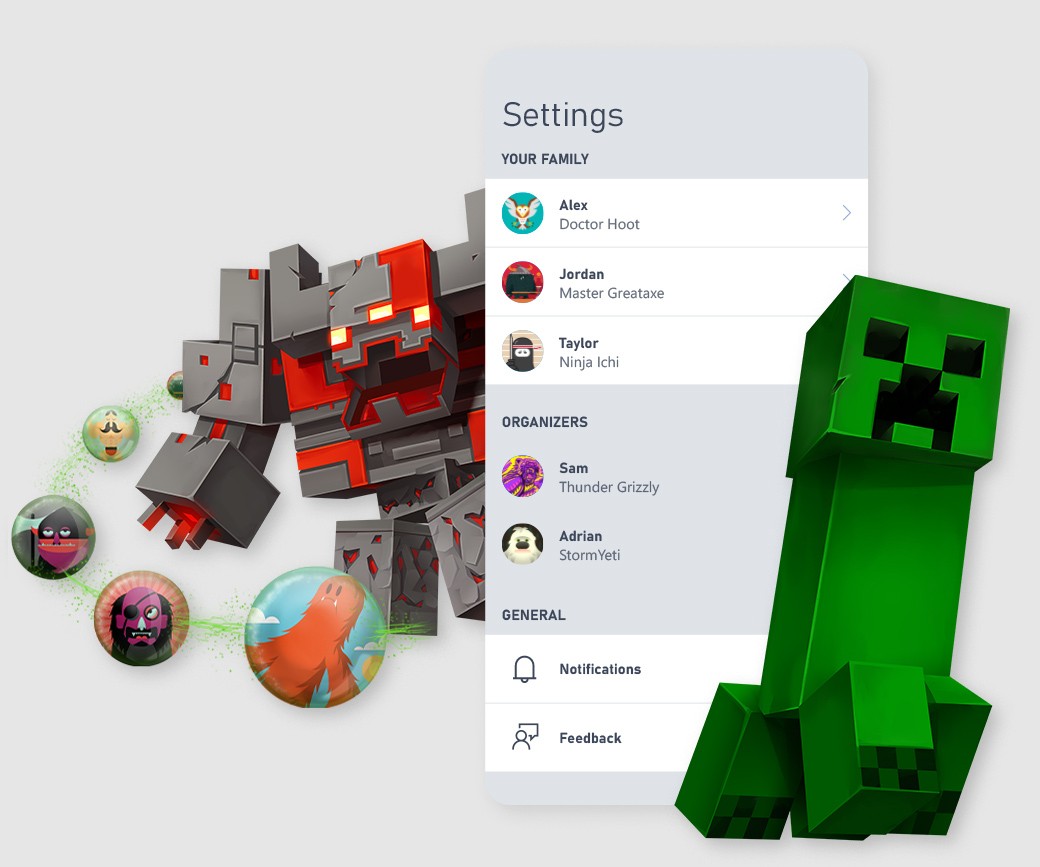
The iPhone and iPad version of the app gained more detailed controls in July. According to the update notes reported by 9to5Mac on July 7, parents can now set time limits for individual apps and games, block specific titles, review requests for extra time on a single game, and use new weekly, weekend and custom schedules. That report covered the Apple version, so Android users should check their own app before counting on per-game limits.
The app’s FAQ also answers a question that has become more relevant this year. Xbox Family Settings covers Xbox Series X|S and Xbox One, and Microsoft says screen-time and content limits can also reach Windows PCs if the child signs in with the family’s Microsoft account and the parent turns on “Use one schedule for all devices” in the Microsoft family settings on the web. Microsoft’s page does not name Windows handhelds specifically, but by that rule a child’s screen time on a ROG Xbox Ally should count against the same schedule as the console under the TV, provided that one setting is switched on. The FAQ is also clear that the app does not extend to mobile games.
Where each setting actually lives
| Console | Parent app only | Console or app | Account website |
|---|---|---|---|
| Nintendo Switch 2 | Play-time limit and bedtime, GameChat approvals and video chat, play history, allow list | Age-rating restriction, general communication restriction, VR mode | eShop spending and visibility, friend suggestions, third-party data sharing (Nintendo Account) |
| PS5 | Real-time phone alerts for requests (also sent by email and to the parent on PS5) | Playtime, age levels, communication, monthly spending limit, allowed games, privacy | The same controls through Account Management on the web |
| Xbox Series X|S | Screen-time schedules, pause, Ask to Buy, allowances, friend requests | Settings apply on Series X|S and Xbox One once the child signs in | “Use one schedule for all devices” to include Windows PCs (Microsoft family account) |
A setup order that avoids the usual traps
Whichever console it is, the order of operations matters more than any single toggle, because each system expects the adult account and the child account to exist before the rules can attach to anything. Based on the three companies’ instructions, this is the sequence we would follow before the console is handed over:
- Create the adult account first and the child account second, using the child’s real date of birth, since every platform uses that age to apply its presets.
- Install the parent app on your phone and link it before the child’s first session. On Switch 2, add a phone number to your Nintendo Account at the same time so GameChat controls can be set.
- Pick an age preset, then adjust individual settings. On Switch 2, choose the preset for the youngest person who will use that console.
- Set spending separately: the eShop restriction in Nintendo Account, the monthly limit on PlayStation (raising it from 0 if needed), or Ask to Buy and an allowance on Xbox.
- Decide what happens when time runs out. Nintendo only shows an alarm unless suspension is switched on, and PlayStation only notifies unless you choose “Log Out.”
- If a second parent will share the job, add them now: Shared Parental Controls on Nintendo, an appointed parent or guardian on PlayStation, or a second organizer in the Microsoft family group.
Who needs to do what
Families with more than one child sharing a Switch 2 have the most to think about, because the play-time limit and age restrictions apply to the whole console rather than to each child. In practice that means either setting rules for the youngest player and using the allow list for specific games an older sibling plays, or accepting that the limit is a household limit. Families switching on GameChat for the first time should plan for the phone-number step and for approving each friend individually.
PlayStation households mostly need to remember the zero spending default and agree on who controls it, while families with a gaming PC or a Windows handheld alongside an Xbox should switch on the single schedule in Microsoft’s family settings, since otherwise time on the PC sits outside the console’s limits. For everyone, the most useful habit is the same one each company builds its app around: approve requests from the phone rather than lifting restrictions entirely, so the rules stay in place after the holiday excitement wears off.